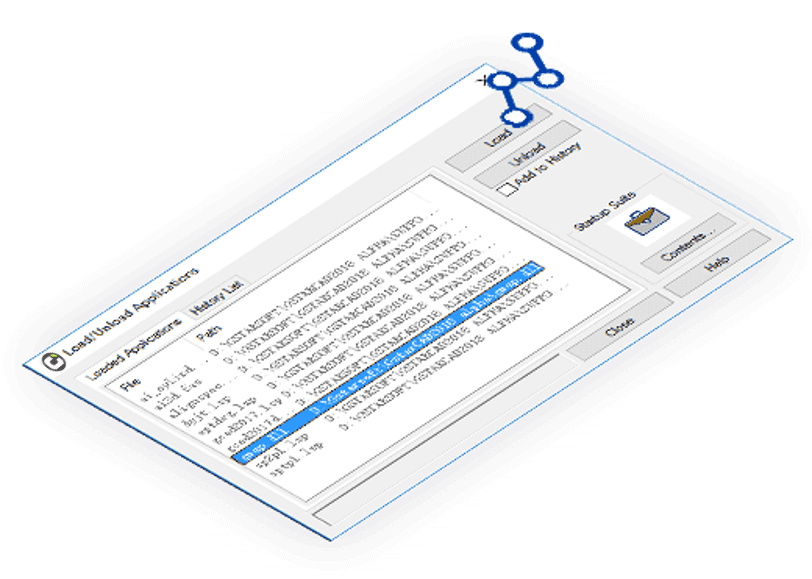
Workspaces and appearance control
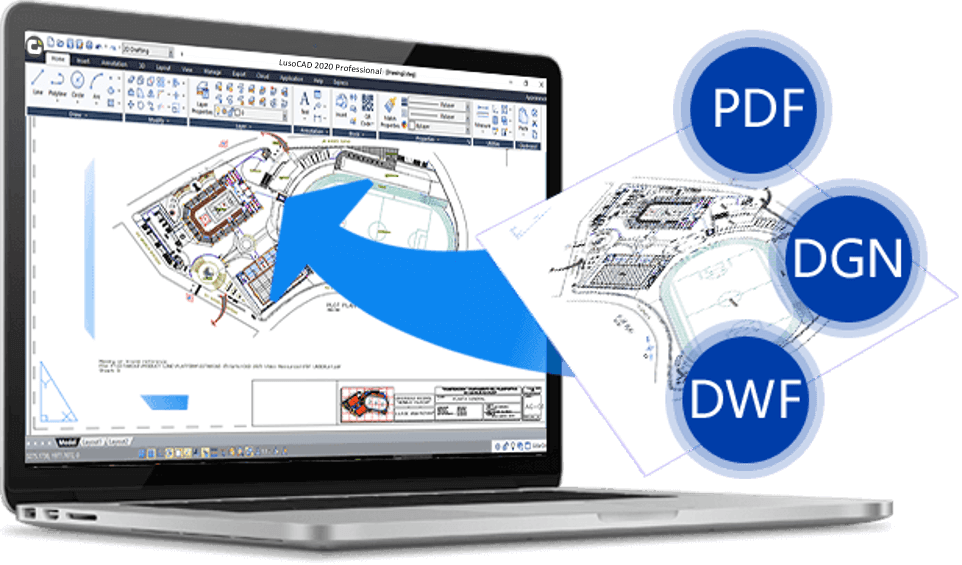
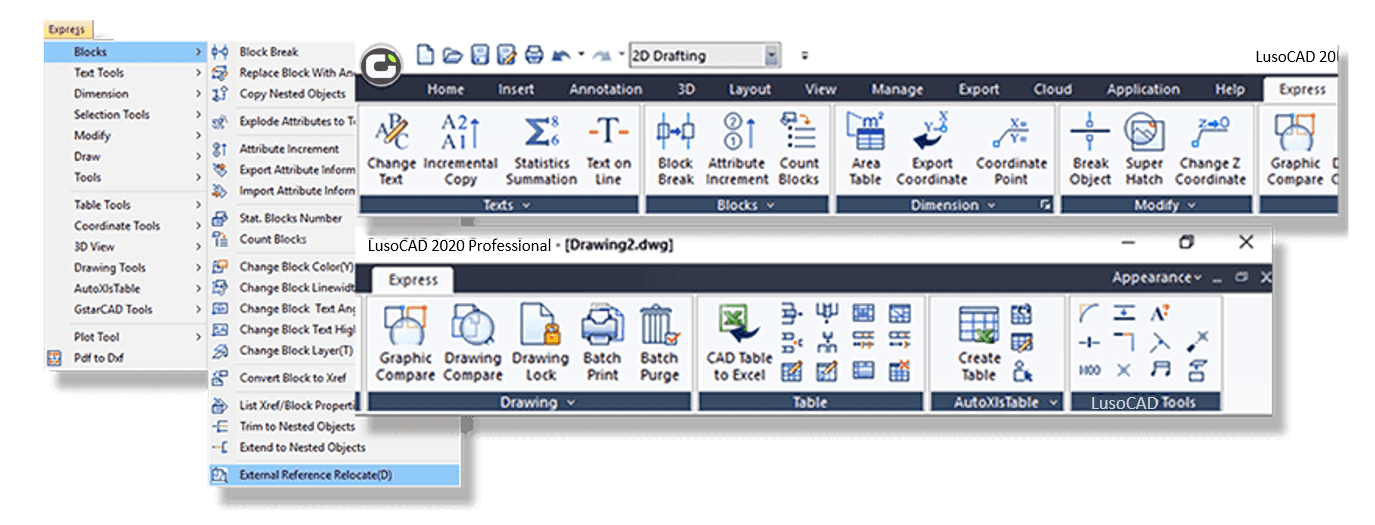
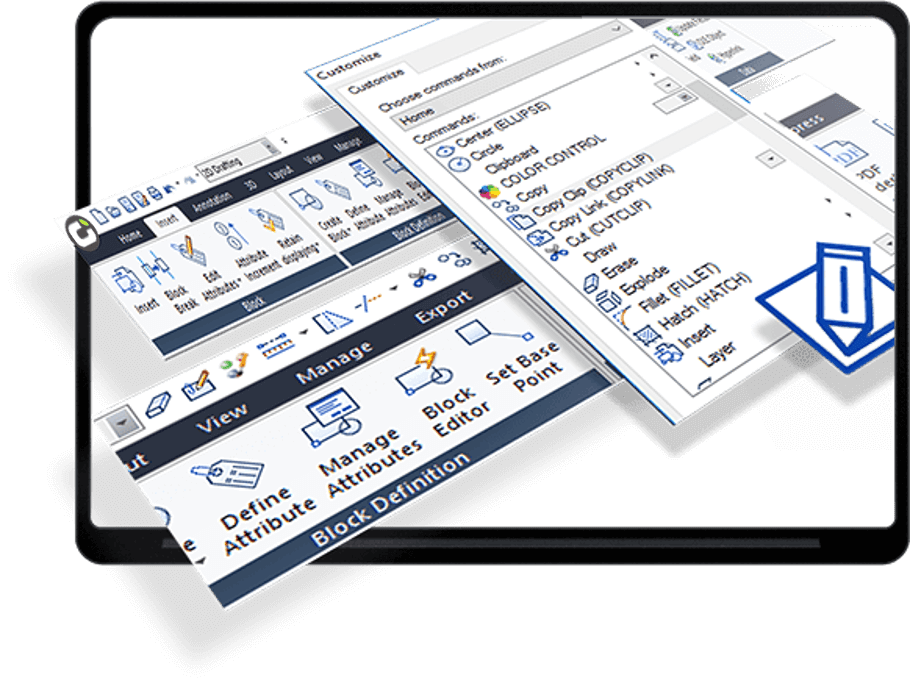
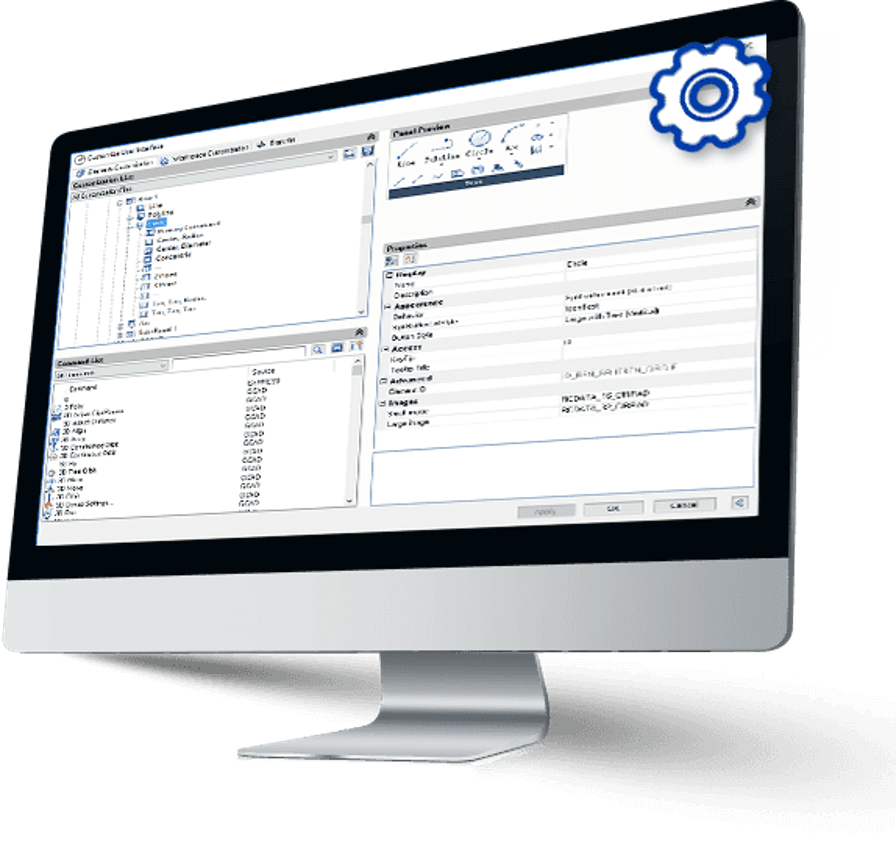
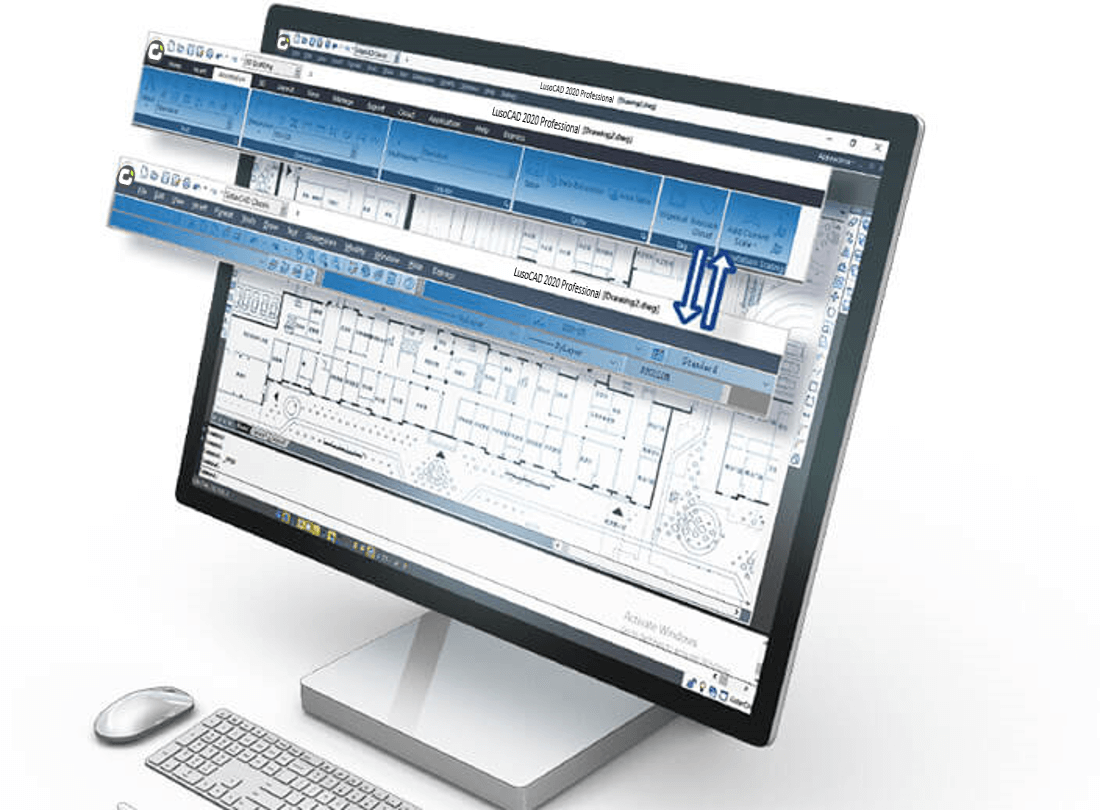
Possibility of switching between modes 2D drafting and Classic in the blink of an eye. The interface 2D drafting contains the most commonly used commands in a ribbon organised according to a scheme of tabs and panels. The classic interface is usually adopted by more experienced users and works on the basis of toolbars. The interface’s appearance control makes your design environment more comfortable, allowing you to quickly switch between colour schemes and control the visibility of the menu bar, toolbars, tabs and panels. colour schemes and control the visibility of the menu bar, toolbars, file tabs, status and scrollamong others.
Dynamic input
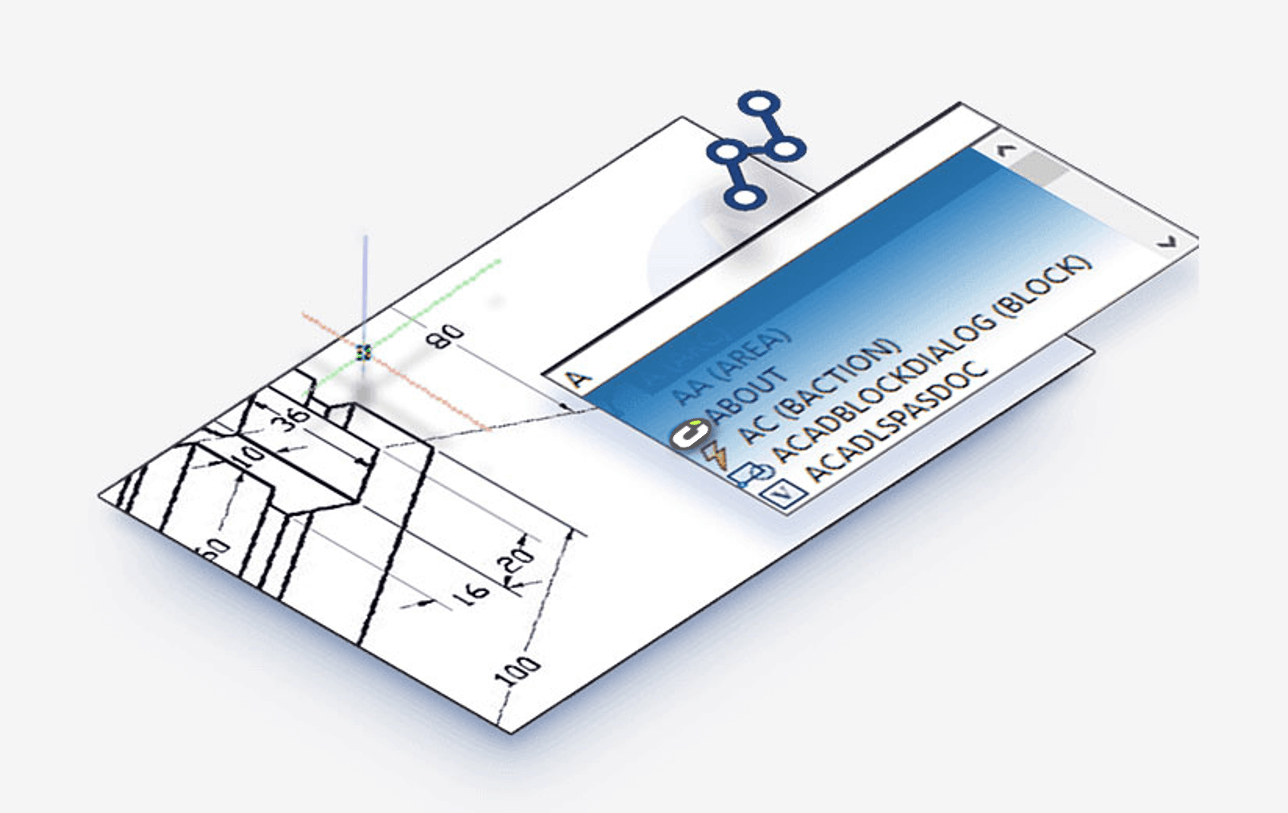
O Dynamic input provides a command interface next to the cursor to help you stay focused on the intervention area. Save time typing and finding long or short commands. O Dynamic input automatically completes the name of the command name instantly.
Property and tool pallets
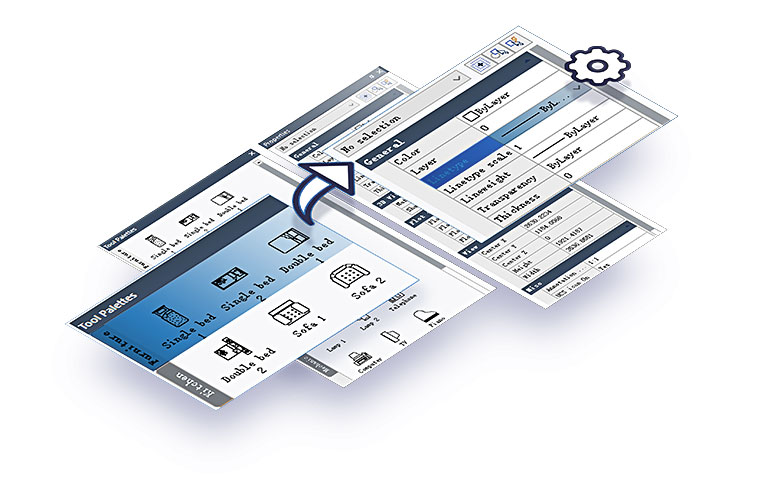
The properties palette is used to view the properties of an object or a set of selected objects. You can also edit the properties using this palette to modify the objects. The tool palette provides an efficient method of organising and using blocks.
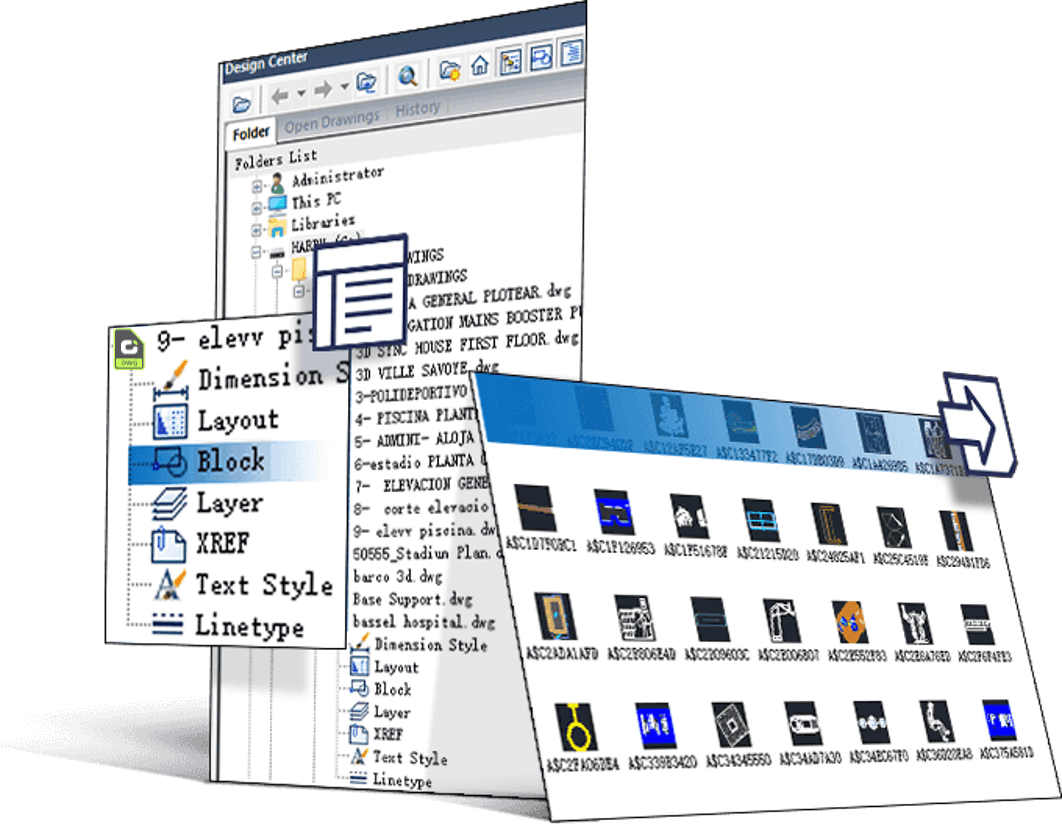
Design Centre
O Design Centre is an integrated interface where you can manipulate and reuse objects and properties from other drawings stored on the local disc, in network folders or on the Internet. Blocks can be utilised, layers, Xrefs, layouts and other definitions. In this way, you can substantially speed up the design work, making practical use of the work previously carried out on other designs.
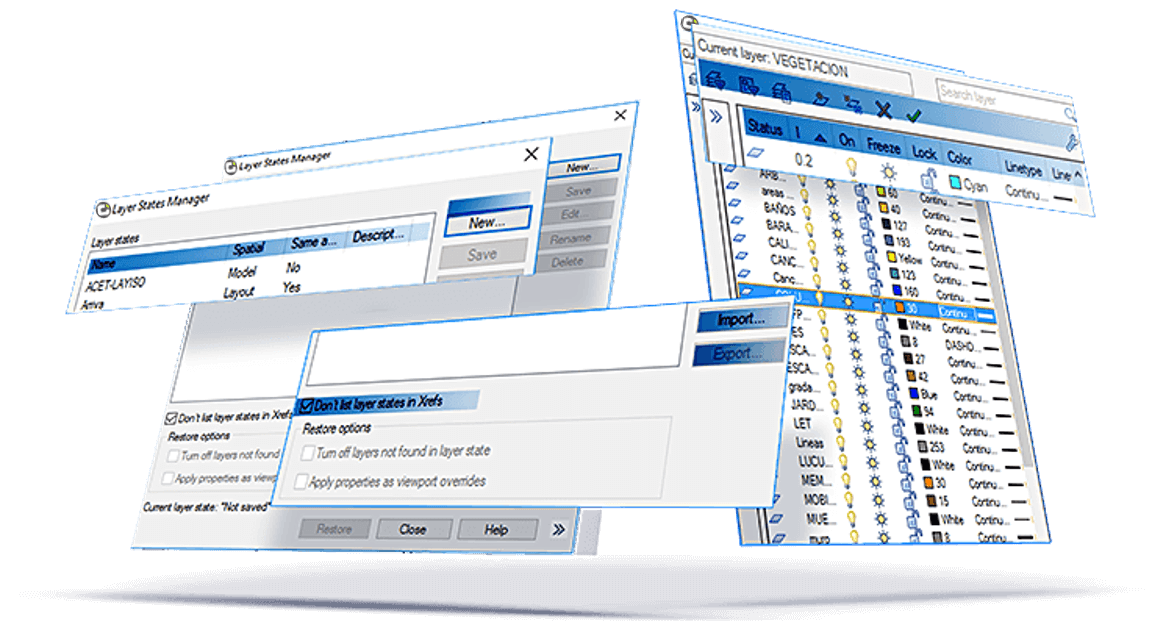
Layer Properties Manager and Layer States Manager
O Layer Properties Manager shows a list of layers of the drawing and its properties. You can add, delete and rename layerschange its properties, define specific properties for viewportsor add new layers and apply changes in real time.
O Layer States Manager allows you to save different sets of layers to reapply them at any time.