

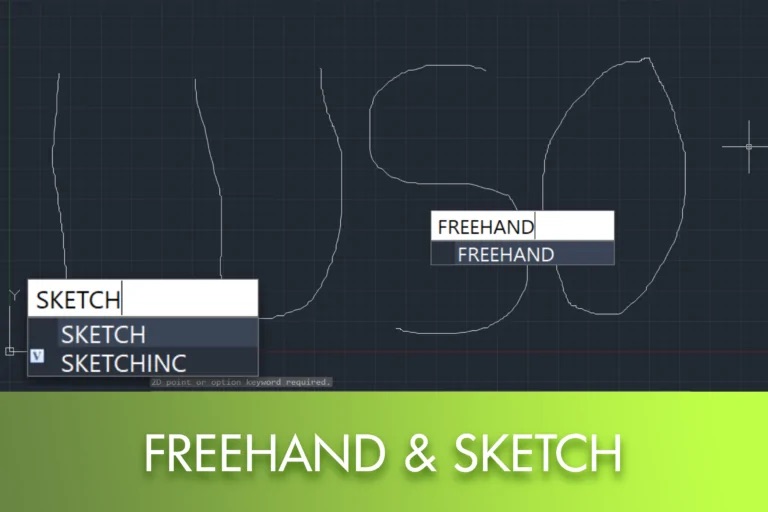
Not all CAD drawings are composed of perfectly straight lines and rigorous geometries. In some situations, it may be necessary to create quick sketches, irregular outlines, or reference shapes that would be difficult to draw with traditional line or polyline commands.

For these cases, LusoCAD provides the commands SKETCH and FREEHAND, These tools allow you to draw freehand line segments following the cursor movement. This functionality is especially useful for creating preliminary sketches, representing organic shapes, or developing ideas quickly before creating the final geometry.
What Does the SKETCH Command Do?

The command SKETCH or FREEHAND It allows you to create a sequence of small line segments that follow the cursor movement on the screen.
Unlike the command LINE, In SKETCH, where each segment is created manually, it automatically generates several consecutive segments as you move the mouse.
What is the Record Increment?
Before starting to draw, LusoCAD asks for the definition of Record Increment. This value corresponds to the base length of the segments used to create the outline.
Small Amounts
They produce smoother and more detailed designs.
Advantages:
- Greater accuracy
- More natural curves
- Better representation of complex shapes
Disadvantage:
- They increase the number of segments
- You can increase the file size
Higher Values
They produce fewer segments.
Advantages:
- Smaller file size
- Lighter design
Disadvantage:
- The smallest detail
The default value is 1, but it can be adjusted according to the needs of the design.
It is also possible to define this value by indicating two points in the drawing.
How to Use the SKETCH Command
Step 1
Type in the command line SKETCH or FREEHAND and press Enter.
Step 2
Set the value of Record Increment.
Can
- Enter a numerical value
- Select two points to determine the distance
Step 3
Click to set the starting point of the sketch.
Step 4
Move the cursor to start drawing.
LusoCAD automatically creates line segments as the cursor moves.
When you want to stop drawing, just click again.
Continue to Draw
After finishing a stroke, you can click again to start another sketch without leaving the command.
This allows you to create multiple consecutive elements during the same drawing session.
How to Fix Errors
If you make a mistake during drawing, you do not need to leave the command.
Introduction E to activate the elimination mode.
Then move the cursor over the segments you want to remove.
How to Save the Created Drawing

When you finish the sketch, insert R from Record.
or simply press Enter.
LusoCAD ends the command and keeps all the segments created in the drawing.
When to Use the SKETCH Command?
This tool can be useful in situations such as:
- Quick conceptual sketches
- Organic or irregular shapes
- Preliminary drawings
- Marking of reference areas
- Temporary graphical annotations
Although it does not replace the precision drawing tools of LusoCAD, it is a quick way to represent ideas and less regular geometries.
Conclusion
The commands SKETCH and FREEHAND They allow you to create freehand lines directly in LusoCAD by moving the cursor. By controlling the value of the Record Increment, You can choose between greater precision or lighter files, adapting the tool to the needs of each project.
For quick sketches or irregular shapes, this is a simple and effective alternative to traditional drawing commands.