

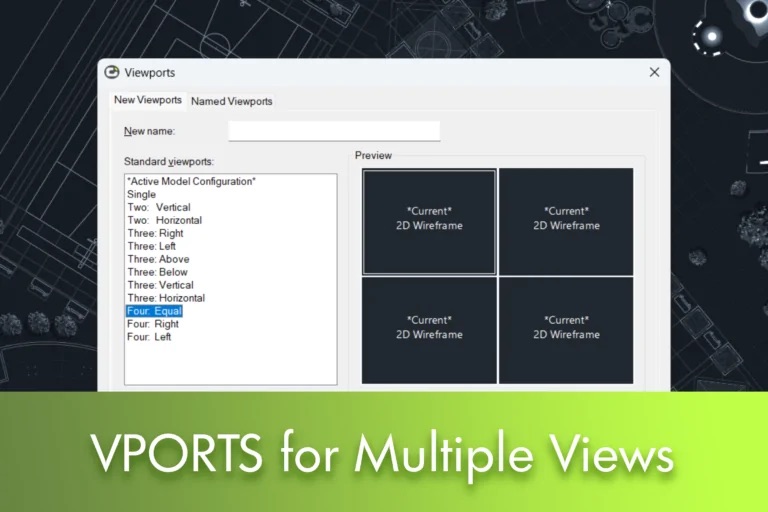
When working on complex drawings, it is often necessary to analyse different areas of the project at the same time. For example, you might want to track an enlarged detail while maintaining an overview of the floor plan, or compare different zones of the same drawing without constantly zooming and panning.
As with tools that help improve productivity, such as dynamic blocks or the command CLOSELINE, LusoCAD’s multi-view functionality allows you to work more efficiently by keeping several perspectives of the same drawing open simultaneously.
In this article, we show how to create, manage and restore multiple views within a single file.
What Are Multiple Views?
LusoCAD allows you to divide the drawing area into several independent viewports, each with its own view of the same drawing.
After splitting the window, you can:
- Zoom in on one view without affecting the others
- Pan each view independently
- View different areas of the project at the same time
- Working with multiple levels of detail simultaneously
Any change made in one view is immediately reflected in the others, as they all show the same drawing.
1. Create Multiple Views with VPORTS

To create multiple views of the same drawing, you can use the menu or the command line.
Access View → Viewports
or use the command VPORTS.
Choose the View Layout

After running the command, you can select:
- 1 viewport
- 2 viewports
- 3 viewports
- 4 viewports
You can also set the window orientation.
For a horizontal split: H
For a vertical division: V
Each viewport operates independently, allowing you to navigate around different areas of the drawing.
2. Control Each View Individually
After creating the viewports, you can click inside any of them to make it active.
In each viewport it is possible to:
- Zoom in
- Use bread
- Change the visible area
- Work on a specific area of the drawing
Operations performed in one viewport do not affect the display of the others.
This feature is especially useful in:
- extensive architectural floor plans
- Engineering projects
- Construction details
- Multi-component mechanical drawings
3. Merge Two Views

If you no longer need multiple windows, you can combine two viewports into a single view.
Access View → Viewports → Join or use VPORTS.
How to Join Two Viewports
- Run the command Join
- Click on the viewport you want to keep
- Click on the adjacent viewport you want to join
The two views merge into a single workspace.
4. Restore a Saved Configuration
If you saved a viewport configuration previously, you can quickly restore it.
Type in the command line -VPORTS.
After Restore.
Finally, enter the name of the configuration you want to retrieve.
This option is useful when you regularly work with the same window layout and want to restore it without needing to recreate it.
When to Use Multiple Views?
Multiple views can be particularly useful in the following situations:
- Compare a detail with the project overview
- Working simultaneously in different areas of the drawing
- Check changes in real time
- Monitor multiple areas of a complex model
- Reduce the number of zoom and pan operations
For large drawings, this feature can significantly improve productivity.
Conclusion
The multiple views of LusoCAD allow different areas of the same drawing to be viewed simultaneously, making navigation and work coordination easier. With the command VERTIPORTS, it can create, organise, combine and restore viewport settings according to the needs of each project.
If you regularly work with complex or large drawings, this is a simple feature that can make your workflow much more efficient.